System requirements
- RAM: 8 GB
- Free space on disk: 1 GB
System requirements
- RAM: 4 GB
- Free space on disk: 1 GB
Installation guide
Linux application is distributed as a Flatpak package. If Flatpak is not already installed on your system, follow the official Flatpak/Flathub setup guide for your Linux distribution.
To install the application run: flatpak install Alameditor_Linux_x86.flatpak
To uninstall the application run: flatpak remove com.ibertelli.Alameditor
License activation
Before license activation procedure, make sure to have a valid license key. If it is not the case, it is possible to buy it from Pricing.
Activation, deactivation and deletion actions requires the device to be connected to internet.
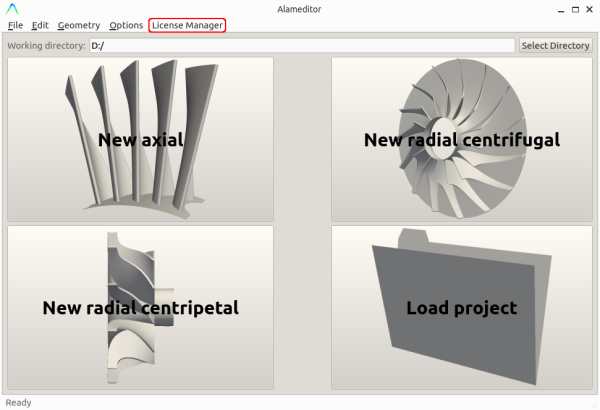
Open Alamedior and from the start page menu click on License Manager.
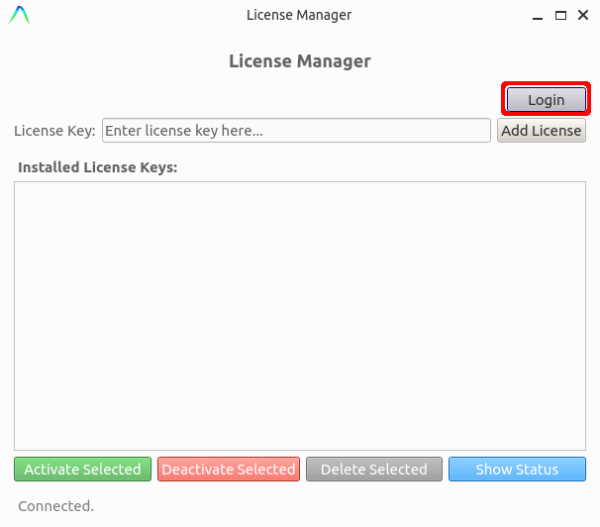
Once the license manager window is open, click on the Login button and insert your credentials. When you are logged in, you should see your account email on bottom right corner.
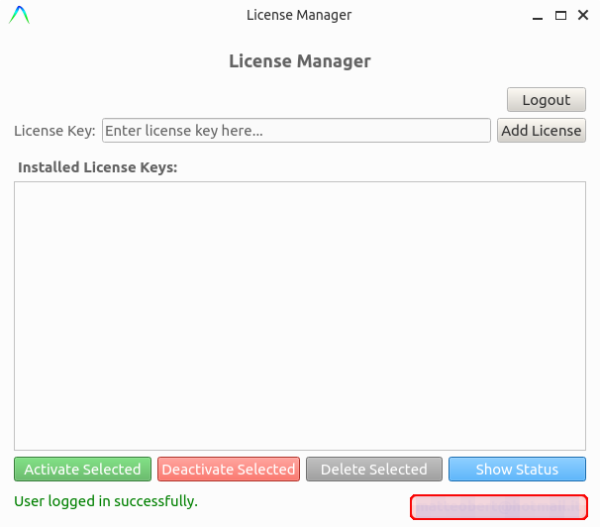
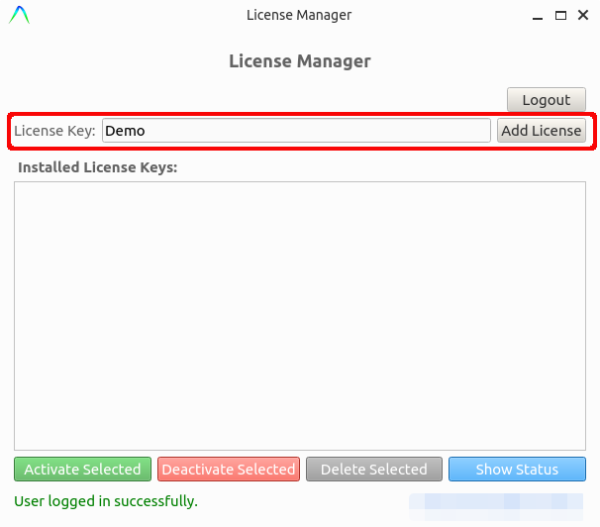
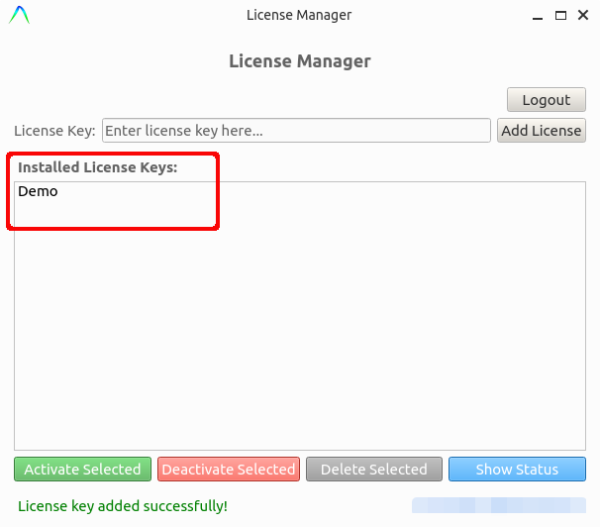
Now insert the license key in the field License Key. Purchased license keys are sent by email or can be found in User Account page. Once the license key is inserted, click on the Add License button. The added key will appear in the Installed License Keys field. Repeat this operation for all the license keys you want to activate.
Now select the license(s) to activate and click on the Activate Selected button.
NB: Every license is not locally saved until it has been activated. Once the license is active on the device, Alameditor can be used also when the device is offline.
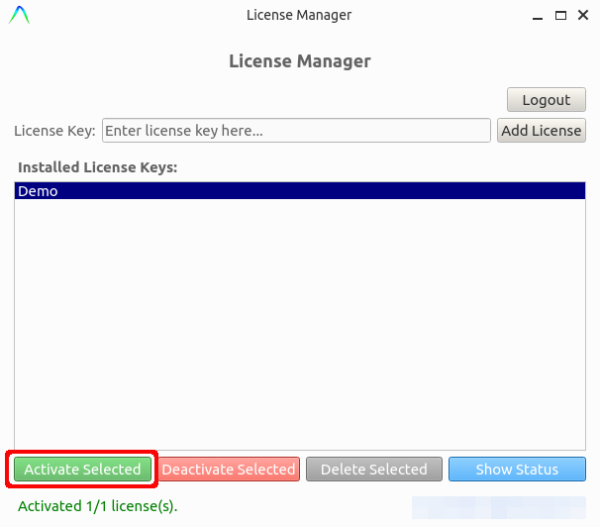
Every license is valid for only one device. In case user needs to use an active license on a new device, the license must be firstly deactivated (click on Deactivate Selected button), then it can be activated on the new device. The deactivation procedure can be done from any device once the user is logged in.
To delete the selected license from the device, user can click on the Delete Selected button. License will be deactivated in case it was active, then deleted from the device. The deletion procedure removes the license only from user’s current device, it will be valid and usable until the expiration of purchase conditions.
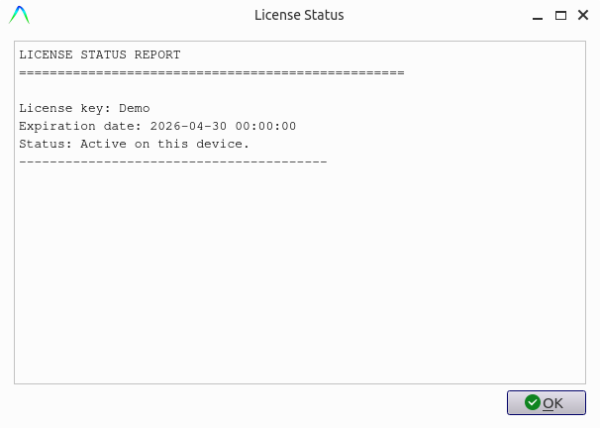
To look at licenses info, user can click on Show Status button.